
Welcome! Within this program, you can access and update information on all active professional licenses associated with your user account. From the main dashboard, you can do the following (click any item below to jump to that section):
View LicensesThe My Licenses table displays all active licenses associated with your account. Each column can be sorted in ascending or descending alphabetical order, and you can filter your results by major and by state.
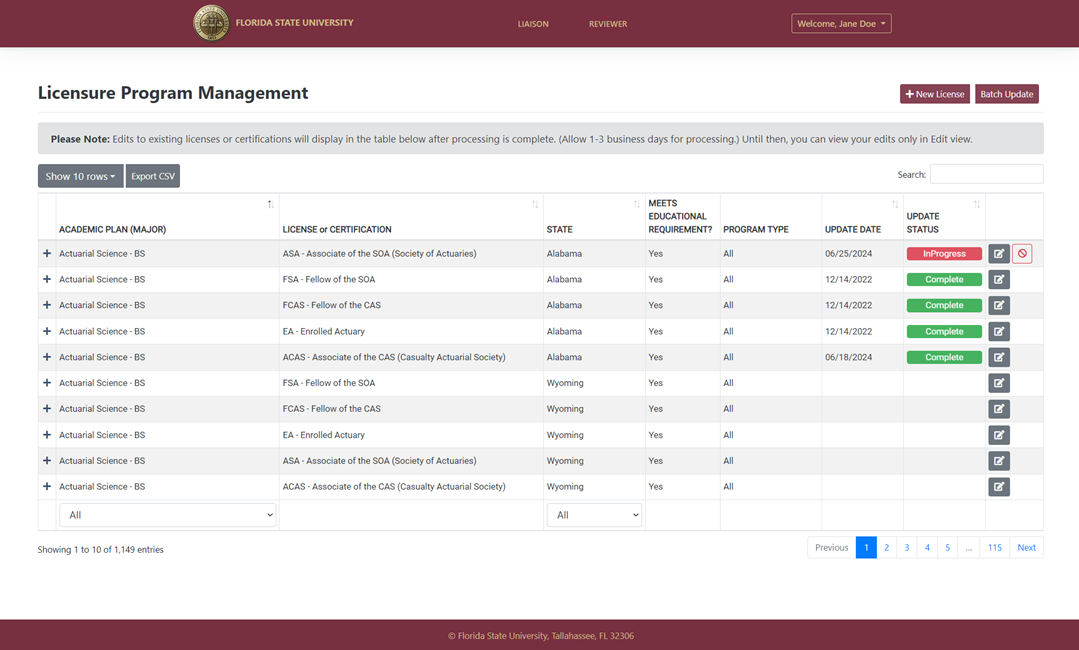
Each column can be sorted in ascending or descending alphabetical order by clicking on the arrow-up/arrow-down icon in the right hand corner of each column heading.

By default, the table displays active licenses for each major associated with your user account. If you want to see only licenses associated with a single major, scroll to the bottom of the column labeled Major. You will see a dropdown menu containing a list of majors. Select a major, and the table will display only the licenses specific to that major.
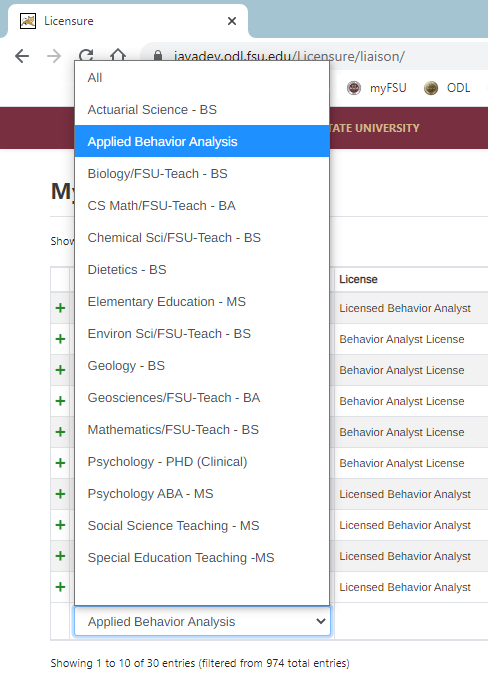
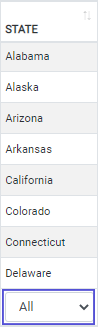
By default, the table displays active license information for all US states and territories. If you want to filter the list of licenses by state or territory, scroll to the bottom of the column labeled State. You will see a dropdown menu containing a list of all states and territories. Select one from the list, and the table will display the license(s) associated with it.
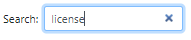
To search the table, begin typing a search term in the search field in the upper-right area of the screen, just above the table. Click on the x icon within the search field to clear the search and restore the default table display.
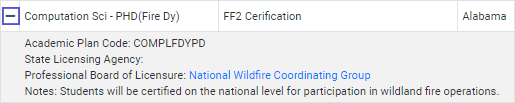
Click the plus + sign at the beginning of each row to expand the row and view license details

Once expanded, you can view details like the academic plan code, state agency, state board, and notes. Click on the minus - sign to collapse the row and hide the license details.
When you submit data through the My Licenses application, it is not immediately posted to the Professional Licensure and Certification website for public view. Data is first received for processing by the Office of Digital Learning. Each new license and edit request is reviewed before it is posted for public view. The update status indicates where your new or edited license information is within this process.

New. As soon as you add a new license, one that has never appeared in the public search before, its update status will show as New. This means that the My Licenses application has received the submission, but the Office of Digital Learning still needs to process and post it to the public search site.

In Progress. As soon as you edit an existing license, its update status will show as In Progress. This means that the My Licenses application has received the edit request, but the Office of Digital Learning still needs to process and post it to the public search site

Complete. As soon as the Office of Digital Learning has processed and posted a new or edited license, the status of that license will show as Complete. The new or edited data is now visible to the public.
If there is no update status listed for a license, it means there are no pending updates associated with that license, and what is viewable from the public search site is considered the current information for that license.
The My Licenses application shows only the majors currently associated with your user account. Majors can be added and modified only by an administrator. To add a new major, edit an existing major, or request that a major be deleted, please email ODL-SARA@campus.fsu.edu.
You can add a new license for a program by clicking on the New License button in the upper-right portion of the screen. (You will need to create a new license for each state and US territory.)
The application will open a new screen titled New License.
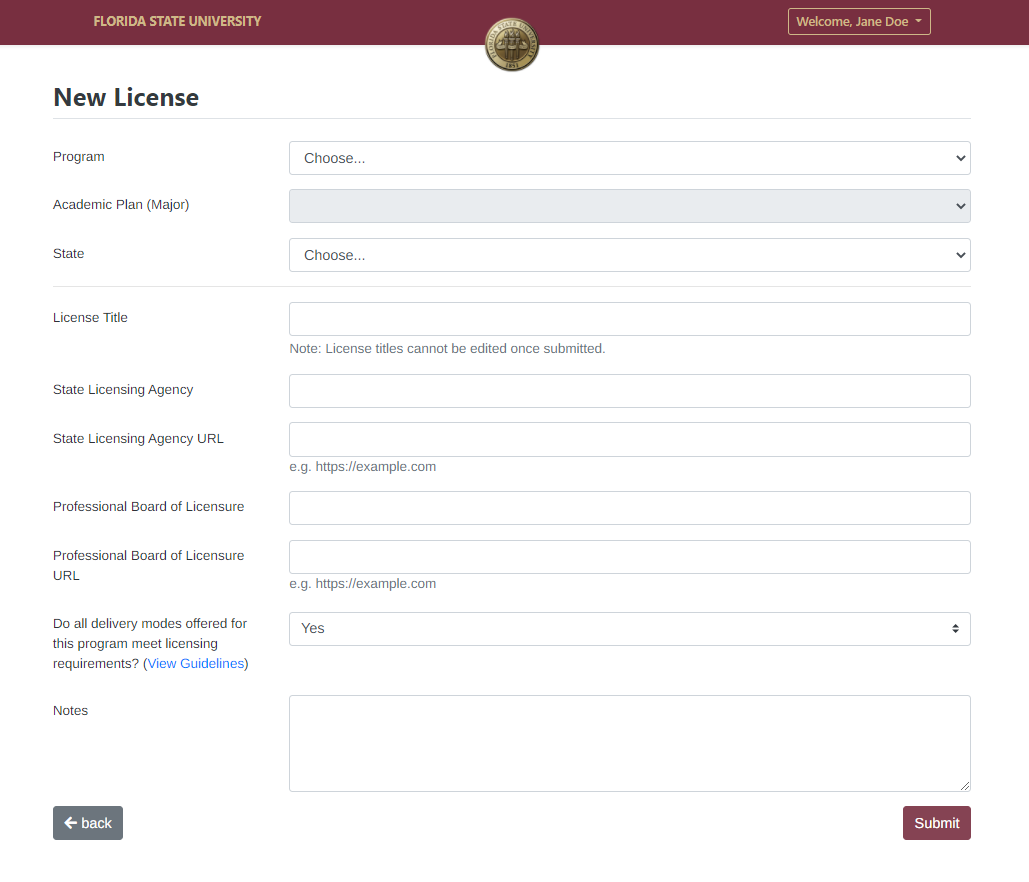
In the Program dropdown, you will see the degree program(s) associated with your user account. Select the program associated with the license you would like to add. If you do not see your degree program, contact odl-sara@campus.fsu.edu to request that a program be added to the licensure database.

Next, choose a major from the Academic Plan (Major) dropdown.

Select a state or territory, being sure to add a new license for each US state and territory.

Enter the name of the state licensing agency that regulates this profession, then the full URL (beginning with http://) for the state licensing agency's website. Please check the link once you have entered it to ensure it goes to the appropriate page. You may leave these fields blank if there is no regulatory state licensing agency for this profession.


Enter the name of the professional board that regulates this profession, then the full URL (beginning with http://) for the professional board's website. Please check the URL once entered to ensure it links to the appropriate webpage. You may leave these fields blank if there is no professional board for this profession.


After conducting research to determine if the program meets the state's educational requirements for licensing, select Yes, No, or Unable to Determine for the question "Do all delivery modes offered for this program meet educational requirements?" Be sure to review Answering the Question "Do all delivery modes offered for this program meet educational requirements?" for guidance on reporting your program's status with regard to licensing.

Enter notes that explain your answer.
An additional Addictions Counseling course is required. Applicants need to submit a Transcript Review Sheet along with transcript and course descriptions for review by the licensing board.
Because Georgia does not offer licensure by endorsement or reciprocity agreement, additional testing or experiential requirements may be needed to obtain a Georgia license.
If you are unable to determine if your program meets educational requirements, you can use the notes field to explain why.
Click Submit when you are finished completing all fields. Your new license will appear in the dashboard, and its update status will show as New
Once the new license data has been processed (typically within 1-3 business days), the status will change from New to Complete. This means the data can now be viewed by the public on the Professional Licensure & Certification website.
You can edit details for any active license within the My Licenses application. In the table of licenses, find the row with the license you want to edit, then click on the edit icon at the right end of the row.
From the Edit License screen, you will be able to edit some of the details for that license. (Program, academic plan, academic plan code, state, and license title can only be edited by an ODL admin. Email odl-sara@campus.fsu.edu to request edits to non-editable fields.)
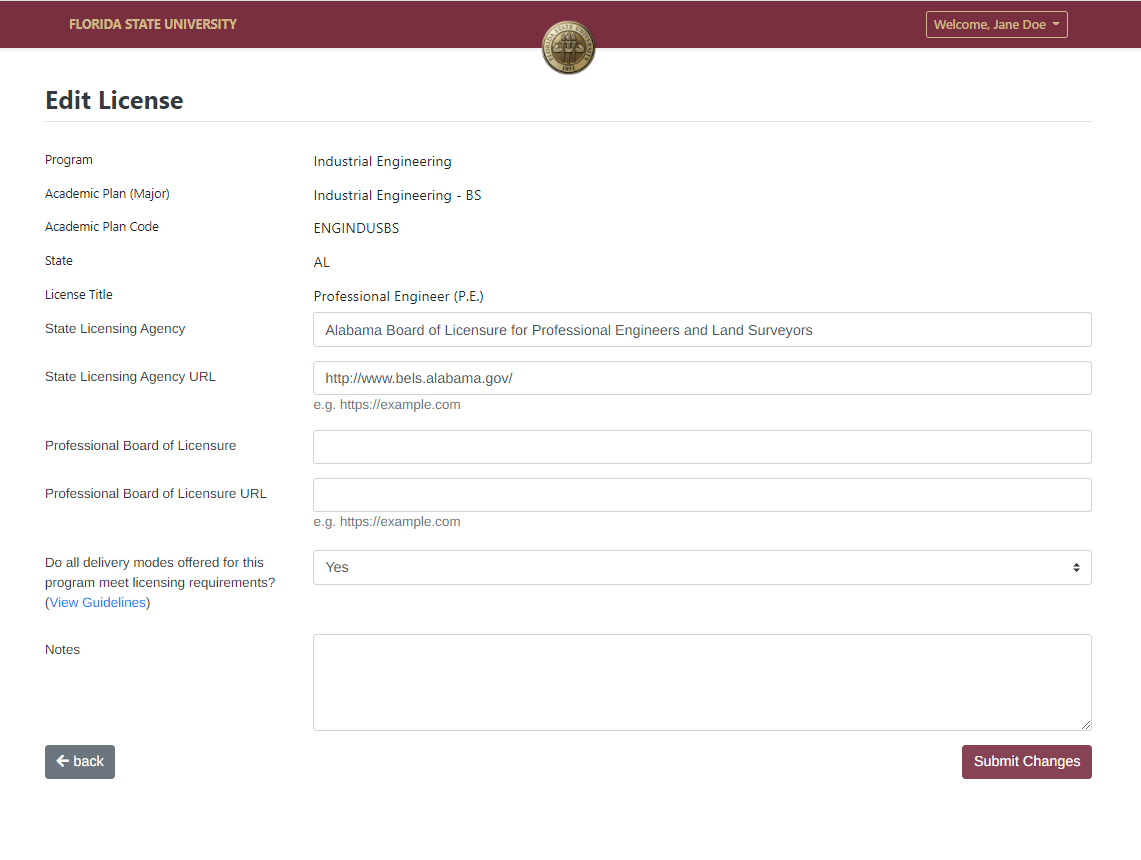
Enter the name of the state licensing agency that regulates this profession, then the full URL (beginning with http://) for the state licensing agency's website. Please check the link once you have entered it to ensure it goes to the appropriate page. You may leave these fields blank if there is no regulatory state licensing agency for this profession.
Enter the name of the professional board that regulates this profession, then the full URL (beginning with http://) for the professional board's website. Please check the URL once entered to ensure it links to the appropriate webpage. You may leave these fields blank if there is no professional board for this profession.
After conducting research to determine if the program meets the state's professional educational requirements, select Yes, No, or Unable to Determine for the question "Do all delivery modes offered for this program meet educational requirements?" Be sure to review Answering the Question "Do all delivery modes offered for this program meet educational requirements?" for guidance on reporting your program's status with regard to licensing.
Enter notes that explain your answer.
An additional Addictions Counseling course is required. Applicants need to submit a Transcript Review Sheet along with transcript and course descriptions for review by the licensing board.
Because Georgia does not offer licensure by endorsement or reciprocity agreement, additional testing or experiential requirements may be needed to obtain a Georgia license.
If you are unable to determine if your program meets educational requirements, you can use the notes field to explain why.
Click Submit when you are finished completing all fields. Your edited license will appear in the dashboard, and its update status will show as In Progress
Once the edits have been processed (typically within 1-3 business days), the status will change from In Progress to Complete. This means the data can now be viewed by the public on the Professional Licensure Certification website
When you submit a new or edited license, the update status changes to New for a new license or In Progress for an edit to an existing license. Until your update is processed (typically within 1-3 business days), it is a pending update and can be edited or canceled.
To edit a pending update, click on the edit icon and follow instructions in the Edit an Existing License section
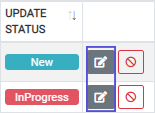
To cancel a pending update, click on the cancel icon. Any edits associated with that update will be permanently deleted. If the update was for an existing license, its information remains unchanged on the public Professional Licensure & Certification site. If the update was a new license request, the new license information will be permanently deleted.
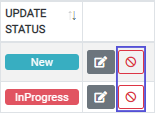
Once a license is in the system, it cannot be deleted. (This is because a record of all email notifications associated with each license must be saved in the event of an audit.) Licenses can, however, be made inactive so that they are no longer viewable to the public on the Professional Licensure & Certification site. To request a change in the status of a license, email ODL-SARA@campus.fsu.edu.
PLEASE NOTE: Once a license status is changed from active to inactive, the system will no longer generate email notifications for that license. You will also no longer be able to see the license in your My Licenses table.
You can use the batch update feature when you need to make an edit that affects more than one license (eg, changing the name or web link for a state licensing agency or professional board). Click the Batch Update button in the upper-right area of the screen.
The application will open a new Batch Update screen. From this screen, you can submit updates that apply to all licenses within a selected program and state.

To update a field (eg, State Licensing Agency), check the box to the left of the field label first. Then you will be able to enter your update. Only checked fields will be updated. If you do not check a field, the existing data on file for that field remains unchanged.

PLEASE NOTE: All of the fields you update, once submitted, will be applied to all licenses within the program(s) and state you select, with one exception: If you enter an update in the notes field, the update will be applied only to licenses with a meets requirements field of either Yes or Unable to Determine. If the meets requirements field is No for a license, you will need to edit the notes for that license individually. See Edit an Existing License for instructions.
When you are finished with all of your updates, click Submit.
If you would like a copy of the licensure data for all of the programs associated with your account, you can download a CSV (comma-separated values) file. Click on the Export CSV button in the upper-left area of the screen.
The application will download the file to your default location for downloads, and you will be able to open it in Microsoft Excel or another spreadsheet program.
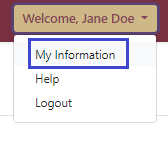
A dropdown menu at the upper-right corner of the screen allows you to view your user profile information. To view or edit your user profile, select My Information from the dropdown menu.
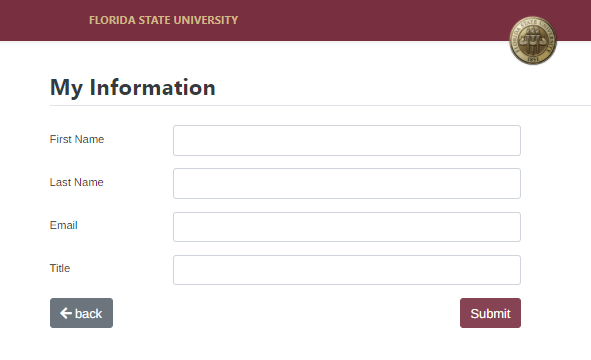
Edit your profile information by replacing the text in each field you wish to change. When finished, click the Submit button
To log out of the My Licenses application, go to the dropdown menu at the upper-right corner of the screen and select Logout.
After conducting research to determine if the program meets the state's educational requirements for licensing, select Yes, No, or Unable to Determine based on your findings:
When to Select Yes
PLEASE NOTE: Some state licensure boards require program curriculum approval before allowing a graduate to be licensed, even if the graduate has met all the other requirements. If you are unsure whether your program curriculum has been approved in a state where the licensure board requires it, do not answer Yes to the question about meeting requirements until approval has been provided by the appropriate licensure board. Failure to seek approval can result not only in penalties from the professional board but can expose FSU to claims of misrepresentation and SARA non-compliance. (For more information and guidance, see WCET/SAN's Professional Licensure Disclosures: Implementation Handbook for Institutional Compliance with the 2019 Federal Regulations.)
When to Select No
When to Select Unable to Determine